What’s new in CartoStar 1.14: more room for your world on iPhone Duo
Open the map wider. Keep your next destination close.
A city can catch your attention in a second. Understanding why it belongs on your shortlist takes a little more room: room to trace a planetary line, compare Scout results, and look at the places nearby. CartoStar 1.14 brings that idea to iPhone Duo, with layouts that respond to the space you have.
This is a tour of what’s new in 1.14. Check the App Store for the version available in your region.
An opened display gives the map space to breathe
On iPhone Duo’s opened display, you can see a broader stretch of the map while keeping search and your main tools close at hand. CartoStar adapts to the available width, using its compact layout in narrower spaces and giving the map and panels more room as the window expands.
That matters when you’re comparing places rather than simply looking at one pin. A line through northern Europe becomes easier to follow across borders. Nearby cities sit in context. You can open Scout to read your rankings, then return to the map to explore the geography around a result.
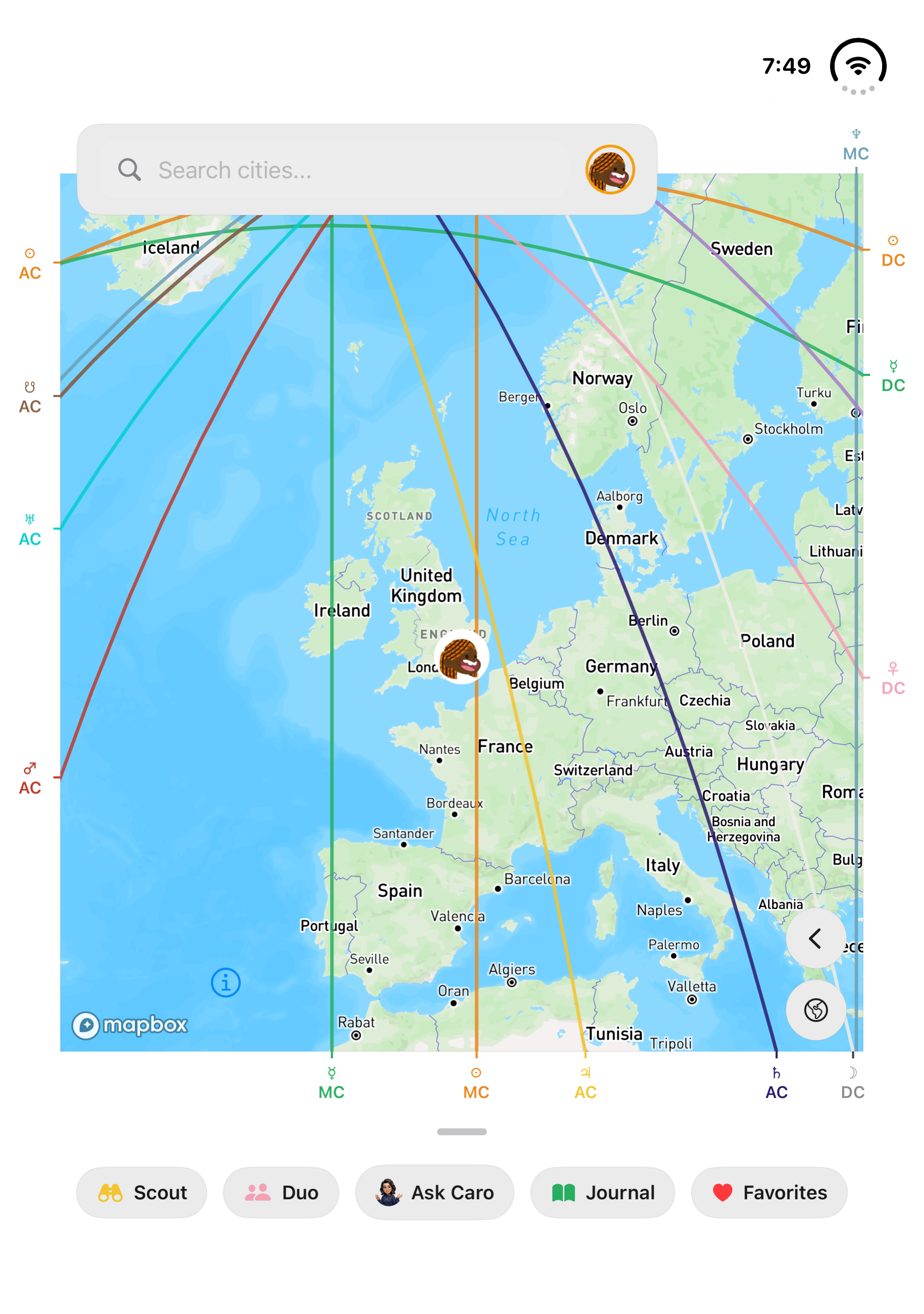
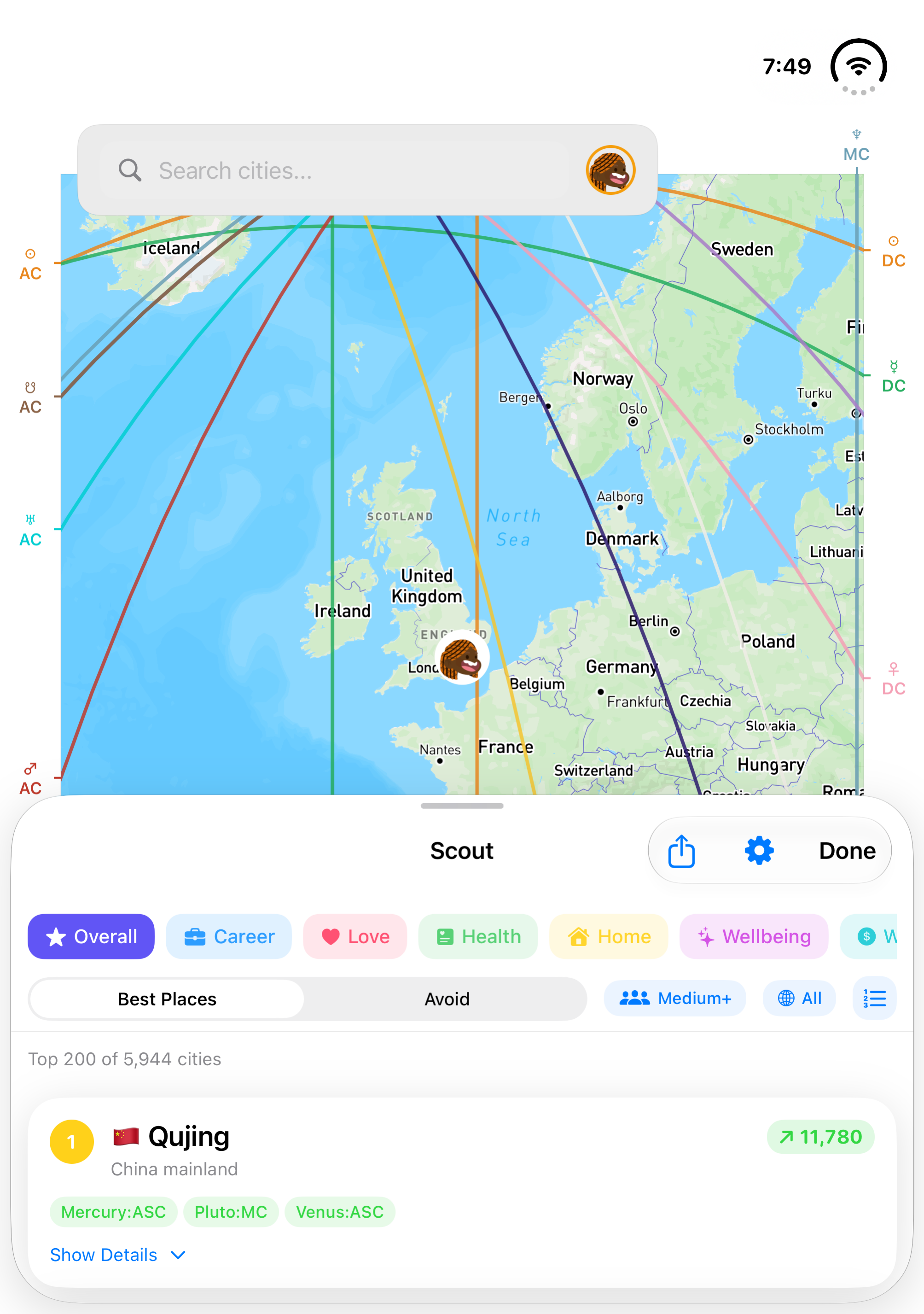
Native screenshots from our iPhone Duo simulator captures. The cities shown belong to the example chart; your own birth details produce your own results.
Choose the view that fits the question
The 3D globe is a natural starting point for seeing your lines around the world. Flat Map is useful when you want to follow a coast, compare neighboring countries, or inspect the route of a line through a region. Version 1.14 lets you switch between the two views.
In the closed display, the globe remains a compact way to explore. Search, Scout, Duo, and the other map tools fit into the smaller space, with the feature row available to scroll. Open the display when you want a larger view of the same exploration.
Use the extra space to make a better shortlist
Start with your birth date, time, and birthplace, then open Scout. Try a category that matches your question: a place to build a home, a destination for a trip, or somewhere to focus on work. Compare a few cities and look at the planetary lines associated with each.
On iPad, live relocation charts offer another way to compare locations. Explore the map to preview the relocated chart, then pin a place to hold it while you look around. Our relocation chart guide explains which parts of a chart change when the location changes.
iPhone Duo is the device. CartoStar’s Duo Mode is the separate feature for comparing two people’s charts. You can use the wider map for your own exploration or for looking at destinations together.
Take a discovery into the conversation
The map is often the beginning of a plan. CartoStar’s Messages experience lets you share your top three places, invite someone to explore destinations together, and send a zodiac sticker. The App Clip gives someone new to CartoStar a quick way to discover their own places before installing the full app.
Explore your next place
Find CartoStar on the App Store, or begin with a quick Top Places discovery.
Get CartoStar for iPhoneTry Top Places →